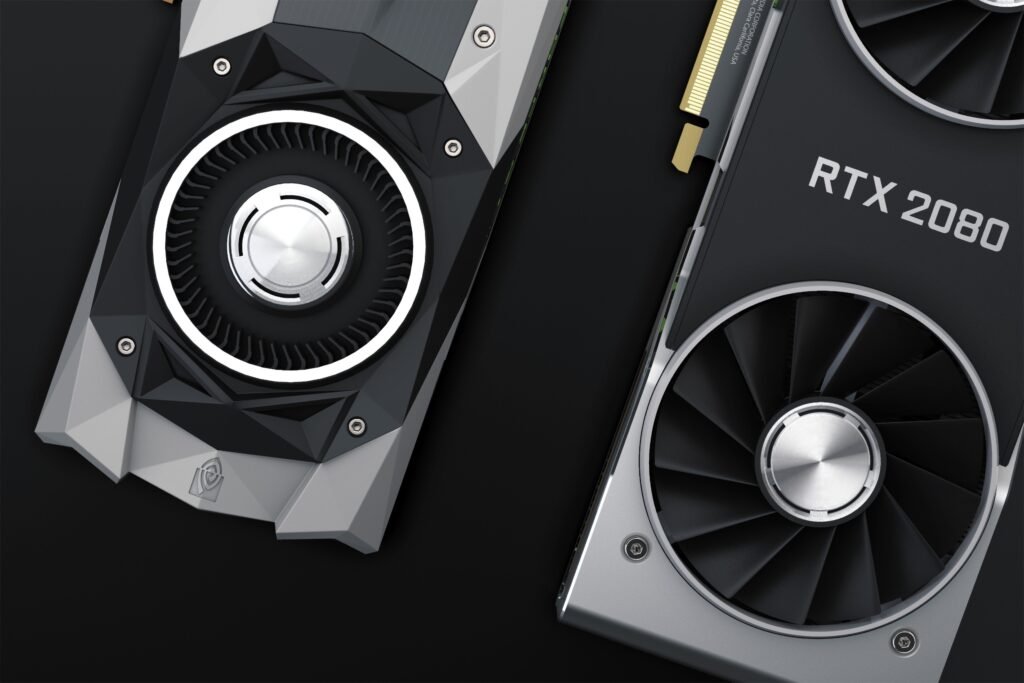

Introduction
A graphics card is one of the most important components of a gaming computer. It processes images, textures, lighting, and visual effects to help games run smoothly. Whether you enjoy competitive games, open-world adventures, or realistic racing games, choosing the right graphics card can improve your gaming experience.
However, selecting a GPU can be confusing because there are many models, memory capacities, performance levels, and prices. Some graphics cards are designed for casual gaming, while others can handle demanding games at high resolutions.
In this guide, you will learn how to choose the best graphics card for gaming, understand important GPU specifications, and avoid common purchasing mistakes.
- Understand What a Graphics Card Does
A graphics processing unit (GPU) handles the visual calculations required to display games on your monitor. It processes three-dimensional environments, character animations, shadows, and other graphical effects.
A powerful graphics card can help a computer run demanding games at higher settings and resolutions. However, gaming performance also depends on your processor, RAM, storage, cooling system, and the game itself.
Before buying a GPU, consider the types of games you play. Lightweight games generally require less graphics power than modern games with detailed environments and advanced visual effects.
Choosing a card that matches your needs can help you avoid spending money on performance you may not use.
- Choose Between Entry-Level and High-End GPUs
Graphics cards are available at different performance levels.
Entry-level GPUs are suitable for casual gaming, older games, and many popular competitive titles at appropriate settings. Midrange graphics cards offer a balance between price and performance for many gamers. High-end GPUs are designed for demanding games, higher resolutions, and advanced graphical features.
Before choosing a category, consider your gaming budget and performance expectations.
For example, someone playing esports titles at 1080p may not need the same graphics card as someone who wants to play demanding games at 4K resolution.
Check recent independent gaming benchmarks for the exact models you are considering. Performance can vary significantly between games and settings.
- Check the Graphics Card’s VRAM
Video RAM, commonly called VRAM, stores graphical data such as textures, frame buffers, and other information needed by the GPU.
A graphics card with insufficient VRAM may experience performance problems when running games with high-resolution textures or demanding graphical settings.
When comparing graphics cards, consider both VRAM capacity and the GPU’s overall processing power.
More VRAM does not automatically make a graphics card faster. A weaker GPU with more memory may still perform worse than a stronger GPU with less memory in many games.
Check the recommended specifications of the games you play and compare real-world benchmarks before making a decision.
- Make Sure Your Power Supply Is Compatible
Your power supply unit (PSU) provides electricity to the computer’s components. A graphics card that requires more power than your system can safely supply may cause instability or prevent the computer from starting correctly.
Before buying a GPU, check its recommended power supply requirements.
Identify your current power supply model.
Check the manufacturer’s recommended wattage for the GPU.
Confirm that the required power connectors are available.
Consider the power requirements of the CPU and other components.
Make sure the power supply is from a reputable manufacturer.
Do not choose a power supply based only on its advertised wattage. Quality, electrical protection, connector compatibility, and the unit’s condition are also important.
Never force a connector into a graphics card or use an unsuitable power cable.
- Check Your Computer Case Size
Not every graphics card fits every computer case. Some modern GPUs are long, thick, and heavy, which can make installation difficult in smaller systems.
Before purchasing a graphics card, measure the available space inside your computer case.
Check the following details:
Maximum supported graphics card length.
Available expansion slots.
Card thickness and clearance.
Power connector clearance.
Airflow around the installed GPU.
Also check whether the card may block other components or interfere with cooling fans.
If you are upgrading a small desktop computer, confirm compatibility with the manufacturer’s documentation before ordering a graphics card.
- Compare Gaming Performance at Different Resolutions
Your monitor’s resolution has a major effect on graphics card requirements.
At 1080p, the GPU processes fewer pixels than at 1440p or 4K. Higher resolutions generally require more graphics processing power to maintain similar frame rates.
Think about your monitor before selecting a GPU.
For example, a budget gaming setup with a 1080p monitor may benefit more from a balanced midrange card than an expensive high-end model.
If you plan to upgrade to a higher-resolution monitor, consider whether the graphics card will provide enough performance for your future needs.
Use benchmarks at your intended resolution instead of relying only on general performance rankings.
- Consider Ray Tracing and Upscaling Features
Modern graphics cards may support advanced features such as ray tracing and AI-assisted upscaling.
Ray tracing can create more realistic lighting, reflections, and shadows, but it can also increase the workload on a GPU.
Upscaling technologies render a game internally at a lower resolution and reconstruct the image to improve performance. Depending on the technology and game, this can help increase frame rates while maintaining good visual quality.
Feature support and performance vary by GPU generation, manufacturer, and individual game.
If these features matter to you, check whether the games you play support them and compare their performance using reliable tests.
Do not purchase a graphics card based on a feature name alone. Look at actual gaming results and image quality.
- Check Whether Your Processor Will Limit Performance
A graphics card does not work independently. Your processor handles game logic, physics, and many other calculations that influence performance.
If your CPU is too slow for a particular game or target frame rate, upgrading the graphics card alone may produce smaller improvements than expected.
This situation is commonly called a CPU bottleneck.
Before upgrading, research how your processor performs with the GPU you are considering. Pay attention to benchmarks from games similar to those you play.
For competitive gaming at high frame rates, CPU performance can be especially important. For graphically demanding games at higher resolutions, the GPU may have a greater influence.
A balanced system usually provides better value than pairing an extremely powerful graphics card with an unsuitable processor.
- Compare Prices and Warranty Options
Graphics card prices can change depending on availability, regional taxes, retailer promotions, and product demand.
Compare several reputable retailers before making a purchase. Check the exact model number because cards with similar names can have different cooling systems, power limits, and factory settings.
When evaluating the price, consider:
Performance in the games you play.
VRAM capacity and supported features.
Power consumption.
Cooling and fan noise.
Warranty coverage.
Return and replacement policies.
Used graphics cards may offer good value, but inspect their condition carefully. Ask for evidence that the card works correctly, check its warranty status, and test it where possible.
Avoid offers that seem suspiciously cheap or sellers who refuse reasonable verification.
- Keep Your Graphics Card Updated and Cool
After installing a graphics card, maintaining it properly can help preserve performance and reliability.
Download graphics drivers from the official website of the GPU manufacturer or your computer manufacturer. Install updates that are appropriate for your hardware and operating system.
Keep the computer’s ventilation openings clear and remove accumulated dust carefully. Make sure the case fans work properly and that cables do not block airflow.
You can monitor GPU temperature and performance using reputable monitoring software. Temperatures vary by model and workload, so consult the manufacturer’s specifications before deciding that a temperature is abnormal.
If games begin crashing, showing graphical artifacts, or experiencing sudden performance drops, investigate drivers, temperatures, power delivery, and hardware condition rather than assuming the GPU must be replaced.
Conclusion
Choosing the best graphics card for gaming requires more than selecting the most expensive model. You should consider your budget, monitor resolution, preferred games, VRAM requirements, power supply, case size, and processor.
Start by deciding which games you want to play and the frame rates you expect. Then compare recent benchmarks and check the compatibility of your existing computer.
A balanced graphics card can provide excellent gaming performance without unnecessary spending. By researching carefully and checking the specifications before purchasing, you can choose a GPU that suits your needs and offers good long-term value.