
Introduction
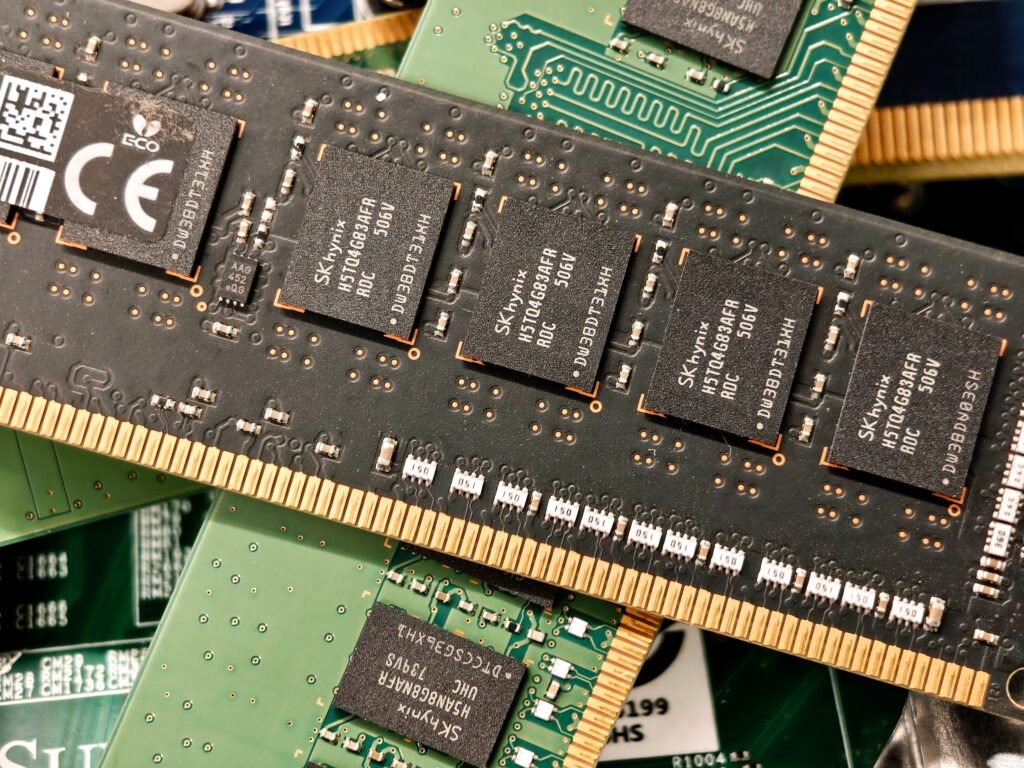
Computer RAM is one of the most important components in a desktop computer or laptop. It helps your system run applications, open files, browse the internet, and perform multiple tasks at the same time. When a computer does not have enough memory, it may become slow, freeze, or struggle to run demanding programs.
Understanding RAM can help you choose the right computer, improve performance, and decide whether your current system needs an upgrade. Whether you use a PC for office work, gaming, video editing, or everyday browsing, selecting suitable memory can make a difference.
- What Is Computer RAM?
RAM stands for Random Access Memory. It is temporary memory that stores data your computer needs while programs are running.
For example, when you open a web browser, edit a document, or launch a game, your computer uses RAM to access the necessary information quickly.
RAM is different from an SSD or hard drive because it normally loses its stored data when the computer is turned off. Storage drives keep files, photos, videos, and installed programs even when the system has no power.
- Why Is RAM Important?
RAM allows your computer to handle active tasks efficiently. Having enough memory helps applications run without repeatedly moving data between RAM and slower storage.
Insufficient RAM can lead to several problems, including:
Slow performance when several programs are open.
Delays when switching between applications.
Stuttering in demanding games.
Slowdowns while editing large files.
Increased use of virtual memory on the storage drive.
However, adding more RAM does not automatically make every computer faster. If the processor, graphics card, or storage drive is the main limitation, upgrading memory may provide little improvement.
- Different Types of RAM
Computer memory has developed over several generations. The most common types in modern desktop computers and laptops include DDR4 and DDR5.
DDR4 RAM: Found in many older and some still widely used computers. It can provide good performance for office tasks, browsing, and many games.
DDR5 RAM: A newer memory generation supported by compatible modern platforms. It offers higher potential memory bandwidth and different technical features.
DDR4 and DDR5 are not interchangeable. Your motherboard determines which type you can install, so always check compatibility before purchasing memory.
- How Much RAM Does a Computer Need?
The right amount of RAM depends on what you do with your computer.
8 GB RAM: Can be sufficient for basic browsing, document editing, and light everyday use, but may feel restrictive with many applications open.
16 GB RAM: A practical choice for general computer use, multitasking, and many modern games.
32 GB RAM: Useful for demanding games, video editing, programming, and heavier multitasking.
64 GB RAM or more: Often intended for professional video production, virtual machines, large creative projects, and specialized workloads.
These are general recommendations rather than strict requirements. Always check the memory requirements of the applications you use.
- What Is RAM Speed?
RAM speed affects how quickly memory can transfer data. It is commonly advertised using a transfer-rate figure, such as DDR4-3200 or DDR5-6000.
Higher transfer rates can improve performance in certain situations, but the benefit depends on the processor, motherboard, memory configuration, and application.
Buying the fastest available memory is not always necessary. Choose a supported speed that offers good value for your system.
- What Is Dual-Channel Memory?
Dual-channel memory allows a compatible computer to use two memory channels to increase available memory bandwidth.
Many desktop systems can benefit from installing two compatible RAM modules rather than one module of the same total capacity.
For example, two 8 GB modules can provide 16 GB of RAM in a suitable dual-channel configuration.
Check your motherboard manual for the recommended slots. Many motherboards suggest using specific slots, often A2 and B2, when installing two modules, but the exact arrangement varies by model.
- Signs That Your Computer Needs More RAM
A computer may need additional memory if it repeatedly slows down while several applications are running.
Common signs include frequent stuttering, slow application switching, browser tabs reloading unexpectedly, or high memory usage in Task Manager.
To check memory usage in Windows:
Press Ctrl + Shift + Esc to open Task Manager.
Select the Performance tab.
Click Memory.
Check how much memory is in use.
Review usage while running your usual applications.
High memory usage alone does not prove that you need an upgrade. Consider your actual performance problems and the memory requirements of your software.
- Can You Upgrade RAM in a Laptop?
Some laptops allow users to replace or add RAM modules, while others have memory permanently soldered to the motherboard.
Before purchasing memory, find your exact laptop model and review its official specifications. Check the maximum supported capacity, memory type, and number of available slots.
If the laptop has soldered memory and no upgradeable slots, increasing RAM may not be possible. In that situation, closing unnecessary applications or upgrading to a different computer may be more practical.
- Common RAM Problems and Solutions
Faulty or incorrectly installed RAM can cause crashes, blue screens, random restarts, or a computer that fails to boot.
If you suspect a memory problem, start with these steps:
Restart the computer and check whether the issue continues.
Install available Windows updates.
Run Windows Memory Diagnostic by searching for it in the Start menu.
Check that memory modules are compatible with your motherboard.
If you are comfortable working inside a desktop PC, inspect the memory installation after shutting down and unplugging the system.
If errors continue, a memory module or another hardware component may be faulty. Professional testing can help identify the cause.
- Tips for Buying the Right RAM
Before buying new memory, check the motherboard or laptop specifications carefully.
Confirm the supported DDR generation, maximum capacity, module type, and memory speed. For desktop PCs, also check the physical memory format because desktop DIMMs and laptop SO-DIMMs are different.
Compare prices from reputable sellers and check the warranty. Avoid buying memory solely because it has an attractive appearance or a high advertised speed.
Most importantly, make sure the new memory is compatible with your existing system.
Conclusion
Computer RAM helps applications run smoothly by providing fast temporary storage for active data. The right memory capacity and speed depend on your computer, motherboard, and everyday workload.
For many users, 16 GB is a practical starting point, while 32 GB offers additional flexibility for demanding games and professional applications. Before upgrading, check your current memory usage and verify compatibility to ensure that your money is well spent.