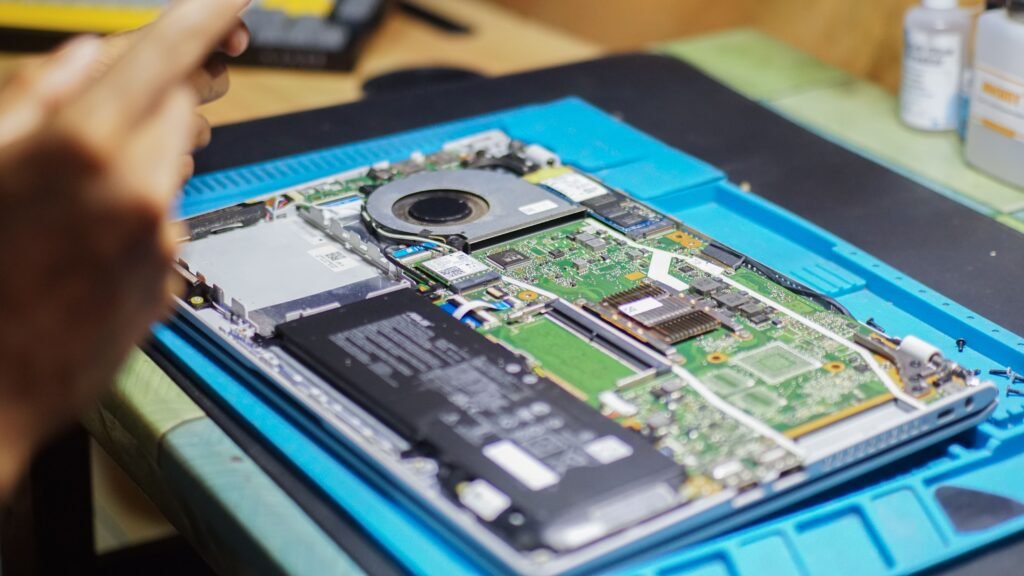

A laptop battery that is not charging can be a frustrating problem, especially when you need your computer for work, study, or everyday tasks. You may notice that the battery percentage stays the same, the laptop shows “Plugged in, not charging,” or the battery continues to lose power even when the charger is connected.
Several issues can cause this problem. Your charger may be faulty, the charging port may be damaged, the battery may be worn out, or Windows may not be reporting the battery status correctly.
Before purchasing a replacement battery or charger, try the following solutions. These practical steps can help you identify the cause and decide what to do next.
- Check the Laptop Charger and Power Cable
The first thing to check is your laptop charger. A loose connection, damaged cable, or faulty power adapter may prevent the battery from charging.
Follow these steps:
Disconnect the charger from your laptop.
Check the cable for cuts, exposed wires, or unusual bends.
Inspect the power adapter for visible damage.
Reconnect the charger securely.
Check whether the charging indicator turns on.
If your charger has a removable power cable, check both ends of that cable as well.
Never use a charger with exposed wires, a burning smell, or signs of overheating. If the adapter appears damaged, replace it with a compatible charger recommended by your laptop manufacturer.
- Try a Different Power Outlet
Sometimes the problem is not your laptop but the electrical outlet or power strip.
To check this possibility, disconnect your charger and plug it into another working wall outlet. If you are using an extension cord or power strip, try connecting the charger directly to a suitable outlet.
Make sure the power cable is connected firmly to the adapter.
If the charging indicator starts working after changing outlets, the original outlet or power strip may have been responsible.
Avoid opening electrical outlets or attempting electrical repairs yourself. If an outlet sparks, feels unusually hot, or smells burnt, stop using it and contact a qualified electrician.
- Restart Your Laptop
Temporary operating system errors can sometimes cause Windows to display incorrect battery information or fail to recognize charging status properly.
A normal restart is a simple troubleshooting step.
Save your work.
Close open applications.
Open the Start menu.
Select Power.
Click Restart.
Reconnect or check the charger after Windows starts.
Observe whether the battery percentage changes over the next several minutes.
If restarting does not help, continue with the other solutions. A restart can correct temporary software problems, but it cannot repair a damaged battery or charging connector.
- Perform a Power Reset
Some laptops may benefit from a power reset when their charging or power management system becomes unresponsive.
For a laptop with a removable battery, shut it down, disconnect the charger, and remove the battery according to the manufacturer’s instructions. Hold the power button for around 15–20 seconds, then reinstall the battery and reconnect the charger.
For laptops with built-in batteries, follow the manufacturer’s specific power-reset instructions. Do not open the laptop just to remove an internal battery.
Some models provide a dedicated emergency reset pinhole, but its location and procedure vary. Use it only if the manufacturer confirms that your model supports it.
A power reset may clear temporary power-management issues. It will not restore a physically damaged or worn-out battery.
- Check the Battery Charging Limit
Some modern laptops include a battery conservation feature that limits charging to a certain percentage, such as 60% or 80%. This feature helps reduce battery wear when the laptop stays connected to power for long periods.
If your laptop consistently stops charging at the same percentage, check whether a battery protection setting is enabled.
Depending on the model, this option may be available in the manufacturer’s laptop management application or BIOS/UEFI settings.
Open the relevant application and look for settings such as Battery Health, Conservation Mode, or Charge Limit.
If you want the laptop to charge fully, adjust the setting according to the manufacturer’s instructions. Remember that limiting charging may be intentional and can help extend battery lifespan.
- Check the Battery Status in Windows
Windows provides information that can help you understand whether the battery is charging and whether the operating system recognizes it.
Click the battery icon on the taskbar and review the displayed status. If it says “Plugged in, not charging,” the laptop may have a charging limit enabled, a battery issue, or a power-management problem.
You can also generate a battery report on supported Windows systems.
Open Command Prompt.
Enter powercfg /batteryreport.
Press Enter.
Open the report file at the location shown in the command output.
The report provides details such as the battery’s design capacity and estimated full-charge capacity.
A large difference between these values may indicate battery wear. However, the report alone cannot confirm every type of battery fault.
- Reinstall the Battery Driver
A problem with the Windows battery device driver can sometimes affect how battery information is displayed.
You can check the relevant device in Device Manager.
Right-click the Start button.
Open Device Manager.
Expand Batteries.
Look for Microsoft AC Adapter and Microsoft ACPI-Compliant Control Method Battery, if listed.
Right-click the relevant battery device.
Choose Uninstall device only if appropriate.
Restart your laptop so Windows can detect the device again.
Device names and available options may vary by laptop and Windows version.
Do not uninstall unfamiliar system devices. If you are unsure, check your laptop manufacturer’s support instructions before making changes.
- Check the Charging Port
A damaged or loose charging port can prevent electricity from reaching the battery.
Look for visible signs such as a loose connector, a bent port, or a charging light that turns on and off when the plug moves slightly.
Do not force the charger into the port or repeatedly wiggle it to maintain a connection. Doing so may worsen the damage.
If your laptop supports USB-C charging, make sure you are using a compatible port and a charger with sufficient power output. Not every USB-C port supports charging.
If the port feels loose or charging works only at a particular angle, a professional inspection may be necessary.
- Update Your Laptop’s BIOS or Firmware Carefully
Laptop manufacturers sometimes release BIOS or firmware updates that address power management, charging compatibility, or battery-related problems.
Before considering an update, check the official support page for your exact laptop model and review the release notes to see whether the update is relevant.
Take these precautions:
Back up important files.
Confirm the exact laptop model.
Read the manufacturer’s update instructions.
Use only the official firmware package.
Ensure the laptop has reliable power during the update.
A failed BIOS update can make a computer unusable, so do not perform one without a clear reason or if the manufacturer advises against it.
- Consider Replacing a Worn-Out Battery
Laptop batteries lose capacity over time. If your laptop is several years old, shuts down unexpectedly, or runs for only a short time after charging, the battery may have reached the end of its useful life.
Check the battery report and any available manufacturer diagnostics. If these indicate significant battery degradation, a replacement may be the most practical solution.
Before purchasing a battery:
Confirm your laptop’s exact model number.
Check the manufacturer’s recommended battery part.
Choose a genuine or reputable compatible replacement.
Confirm the warranty and return policy.
Have a technician install an internal battery if needed.
Important safety warning: If the battery is swollen, leaking, unusually hot, or producing an unusual smell, stop using and charging the laptop. Do not press, puncture, or attempt to remove a swollen battery yourself. Seek professional assistance.
Conclusion
A laptop battery that is not charging does not always mean the battery needs to be replaced. A faulty charger, unsuitable power adapter, charging limit, temporary software error, or damaged charging port can produce similar symptoms.
Start by checking the charger and power outlet. Then restart your laptop, review its battery settings, and use Windows tools to examine battery health.
If the charging problem continues, check the manufacturer’s troubleshooting guidance or contact a qualified technician. Replacing the battery should be considered when testing indicates that the battery is worn out or defective.
By following these steps carefully, you can narrow down the cause of the problem and avoid spending money on parts you may not need.